Financial Assistance Scheme (FAS) Application
Apply for Financial Assistance
What do I need to know before applying for Financial Assistance?
Before applying for Financial Assistance, please take note of the following:
1. Who can apply
The application must be submitted by a parent or legal guardian through the student finance e-service portal. When retrieving household and means-test information, the system checks the applicant, their children, and any wards under their care.
2. The application is based on household and income information
When the applicant starts the application, the system retrieves information from HOMES, including:
· Latest household income means-test result
· Household address
· Gross Household Income (GHI) / Per Capita Income (PCI), where available
· Household composition information
This information is used to determine whether the child may qualify for MOE FAS/ISB or needs further School-Based evaluation.
3. Supporting documents may be required
If the system cannot retrieve a valid means-test result, or if income values such as GHI/PCI are missing, the applicant may need to provide:
· Household member details
· Household member additional income and additional income information
· Supporting documents
This applies even if Other Administrative Income (OAI) is not selected.
4. Other Administrative Income (OAI) may affect the application processing route
If any household member has OAI, the application may require manual evaluation by the school instead of being automatically processed.
5. The application outcome depends on eligibility
The system assesses the application based on the applicable eligibility and subsidy priority rules.
Possible outcomes include:
· MOE FAS/ISB is automatically granted if the child is eligible and no manual review is required.
· The application is routed to the school for School-Based FAS evaluation if the child does not qualify for MOE FAS/ISB but may qualify for School-Based financial assistance.
· No subsidy is granted if the child does not meet the eligibility criteria.
6. Applications for multiple children may be processed differently
If you are applying for more than one child, each child’s application may be processed separately, particularly when:
· Children are in different schools
· Children have different addresses
· OAI review will only be conducted by 1 school
· One child’s application may require school assessment, while another child’s application may be automatically granted
7. The school may need to review the application
For applications requiring manual assessment, the school may:
· Review the submitted application
· Verify household composition and gross household income information
· Determine eligibility for MOE FAS/ISB, School-Based FAS, or no subsidy based on the applicable criteria
· Submit the application for approval
8. Parent/Guardian will be notified of the FAS application outcome, regardless of the result
The application outcome will be available the next day after processing.
How do I apply for Financial Assistance for my children?
To apply for Financial Assistance for my children:
1. Navigate to the Financial Assistance page and click Apply for Financial Assistance.
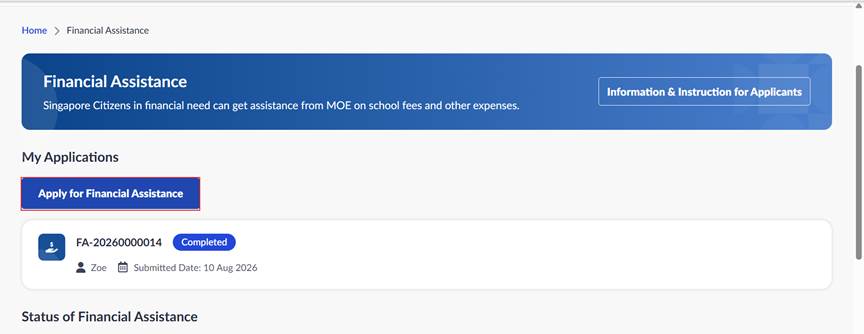
2. In Select Children and Benefits, select the child or children to include in the FAS application and review the applicable financial assistance details for each child.
a. Under Select Children, select a child and complete the FAS application details. Repeat this for each child included in the application.
In the FAS Application Details panel, complete the information below:
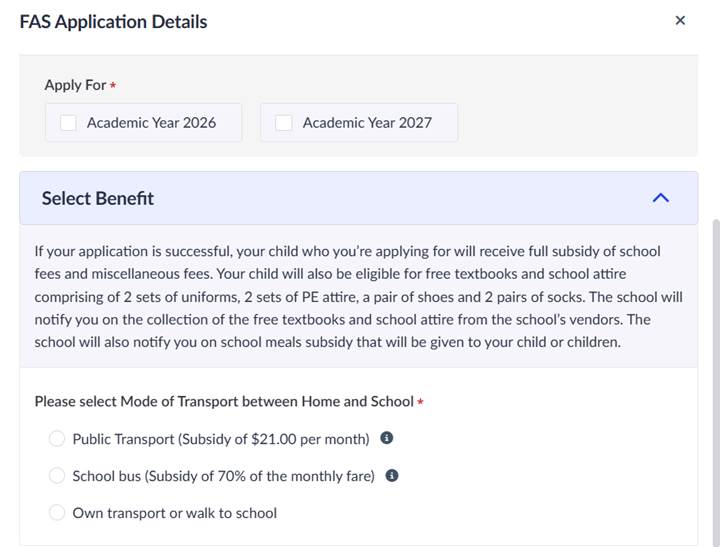
i. Select the applicable academic year to apply for FAS.
ii. In addition to the default full subsidies for school fees, miscellaneous fees, textbooks and school attire, your child may also receive subsidy based on the selected mode of transport between home and school.
iii. Click Save.
iv. You can click Edit to update the information if needed.
b. Under Subsidised Broadband and/or Laptop/Tablet by IMDA, the following note will be shown.

3. Click Next.
4. In the Income and Household Confirmation step, answer the question “Do you need to change any household member(s) details and/or does your family, in total, have other administrative income (OAI) of more than $100.00 beside employment and/or trade income?”.
· Select Yes if your household has OAI of more than $100.00.
You will need to provide additional income details or upload supporting documents under Household Members and Supporting Documents. The application will be routed to the school for manual review, to determine whether the child is eligible for MOE FAS/ISB, School-Based FAS, or no subsidy.
· Select No if your household has no OAI, or the total OAI amount is $100.00 or below.
5. Click on Next.
6. Under Household Members and Supporting Documents, provide the required occupational information for household members and upload supporting documents. This step will be shown if your household is earning more than $100.00 in Other Administrative Income (OAI).
a. Occupational Status of children within the household is automatically displayed (e.g. Full-time Student) and cannot be edited.
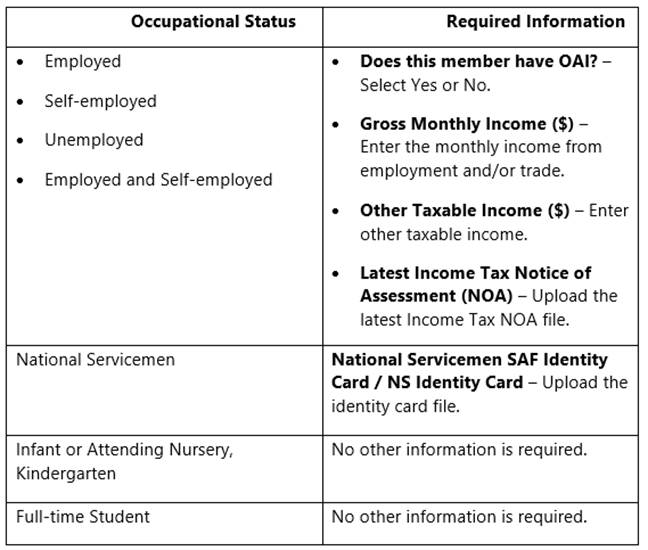
b. For other household members, select the Occupational Status first, then complete the required fields. Refer to the table below for the information required for the respective occupational status selected.
c. If there are additional household members not in the list, click Add Member. Enter the Name, UIN, Relationship with the applicant, and configure the Occupational Status, then complete the required fields.
d. To remove a household member from the list, click the Remove member ( ) icon, select a reason, upload the supporting document,
and click Remove.
7. Click Next.
8. In Preview, review the information entered and select the checkbox to acknowledge the applicant’s declaration and agreement.
9. Click Save as Draft to save your progress without submitting the application. The application status will be Draft.
*Note: Draft applications that are not submitted will be automatically deleted 14 days after the last modification.
10. Click Submit. The application status will be Submitted.
· If OAI is declared, the application status will be Pending School Evaluation on the next day. The school will review the application and determine the outcome.
· If OAI is not declared, the application outcome will be updated on the next day, depends on the children’s eligibility to receive subsidy.
Where can I track my FAS application?
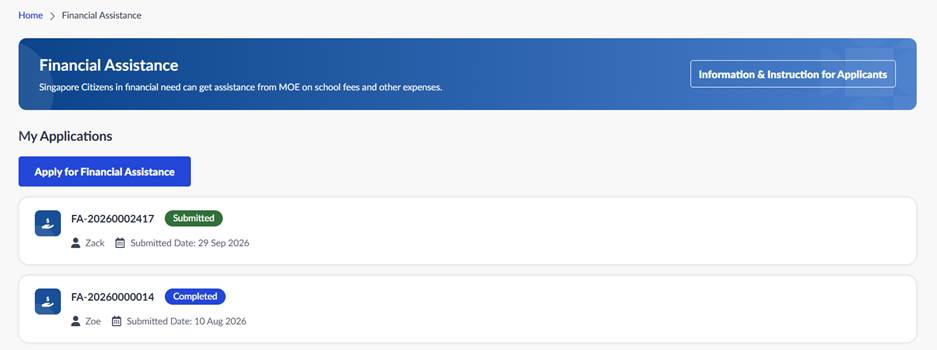
Navigate to Financial Assistance > My Applications to view your submitted FAS applications. details such as the application ID, application status, and the child or children included in the application. Select the application ID to view the application details.
Can I withdraw an FAS application after submission?
Yes, you can withdraw an FAS application after submission. Once withdrawn, the application will no longer be processed and withdrawal cannot be undone. To apply again, you will need to submit a new application. Withdrawal is only available for applications with certain statuses. Refer to the table below for details.
|
Application Status |
Withdrawal Allowed |
|
Submitted |
Yes |
|
Pending School Evaluation |
Yes |
|
Pending Posting Result |
Yes |
|
Granted |
Yes |
|
Unsuccessful |
No |
|
Revoked |
No |
|
Lapsed |
No |
To withdraw an FAS application:
1. Navigate to Financial Assistance
2. Under My Applications, select the application you wish to withdraw
3. On My FAS Application Details, scroll to the bottom of the page and click Withdraw.
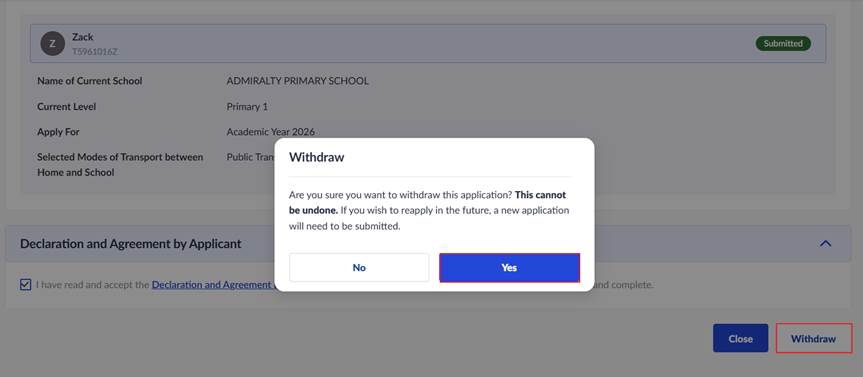
4. In the confirmation message, click Yes to confirm the withdrawal. The application status will be updated to Lapsed.
Learn more
· Post-Secondary Education Account (PSEA)
Explore more
· Edusave
o Edusave Balance, Annual Contribution, and Government Top-Up
o Set Up and Manage Edusave Standing Order
o View and Authorise Edusave Withdrawals
o Edusave Transfer to Post-Secondary Education Account (PSEA)
· Post-Secondary Education Account (PSEA)
o PSEA Balance and Government Top-Up
o Parents’ Contributions to PSEA
o Set Up and Manage PSEA Standing Order
o View and Authorise PSEA Withdrawals
o Repay Government Education Loans
o Options for PSEA Closure at Age 31
· Financial Assistance Scheme (FAS) Application
o Apply for Financial Assistance
· SFS Portal Navigation