Post-Secondary Education Account (PSEA)
Parents’ Contributions to PSEA
Your child’s Child Development Account (CDA) will be closed in the year they turn 13 years old. Any remaining balance in their CDA will be transferred to PSEA. If you have not saved up to the CDA contribution cap, you can continue to contribute to your child’s PSEA and receive the government’s matching grant until the contribution cap is reached, or when your child turns 18 years old, whichever is earlier.
How do I check whether I can still make contributions to my child’s PSEA?
After you log in to the SFS, navigate to PSEA > Account Overview to view Parent’s Contributions to PSEA.
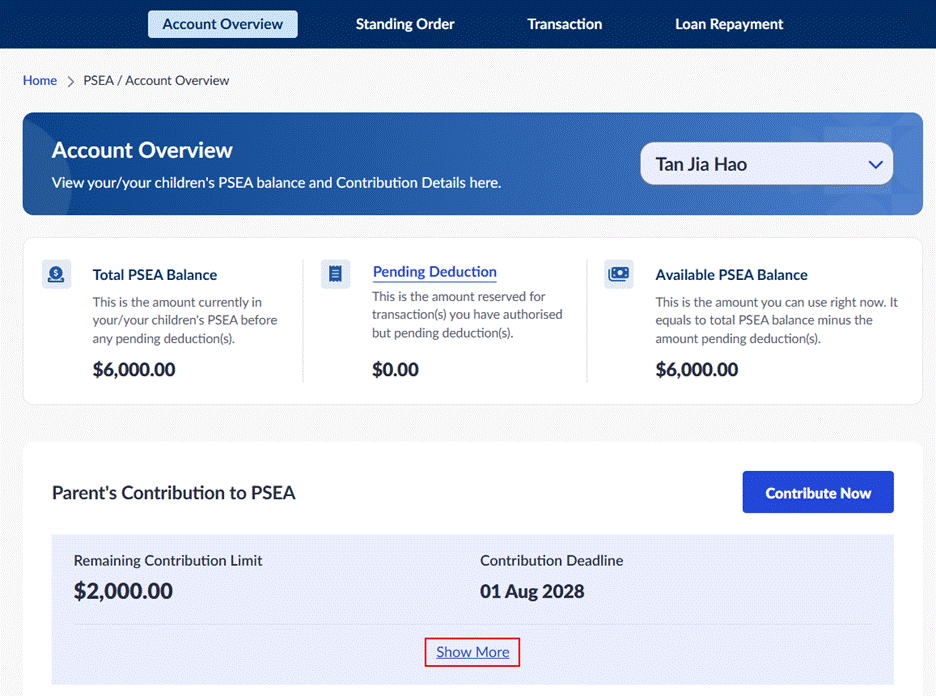
Click Show More to view more details.
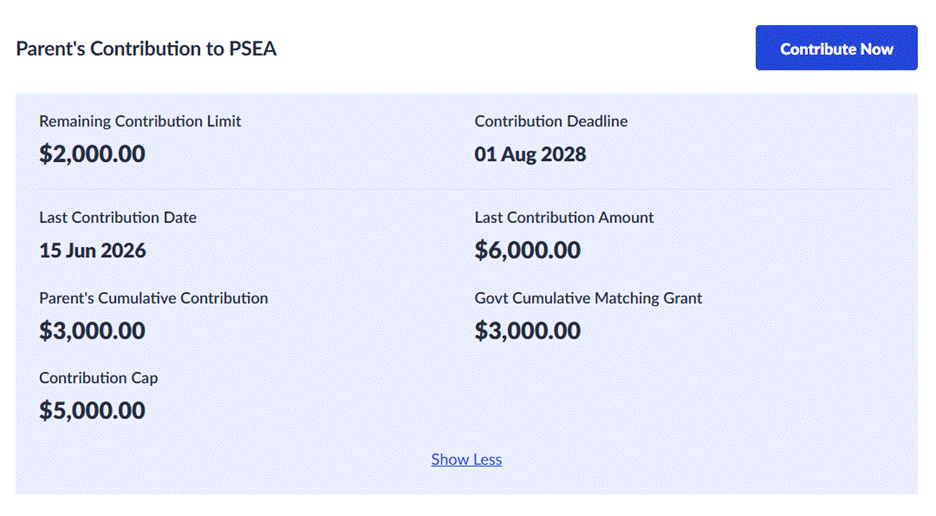
· Remaining Contribution Limit is the remaining amount that you can still contribute to your child’s PSEA
(i.e., Contribution Cap - Parent’s Cumulative Contribution = Remaining Contribution Limit).
· Contribution Deadline is the last date to make contributions.
· Last Contribution Date and Last Contribution Amount are based on the last contribution received.
· Parent’s Cumulative Contribution is the total amount that you have already contributed to date.
· Government Matching Grant is the total amount that you have received to date. The government matching grant is usually credited to your child’s PSEA account the next month after you make your contribution.
· Contribution Cap is the maximum amount you can contribute based on the cap under the Baby Bonus Scheme.
How can I contribute funds to my child’s PSEA?
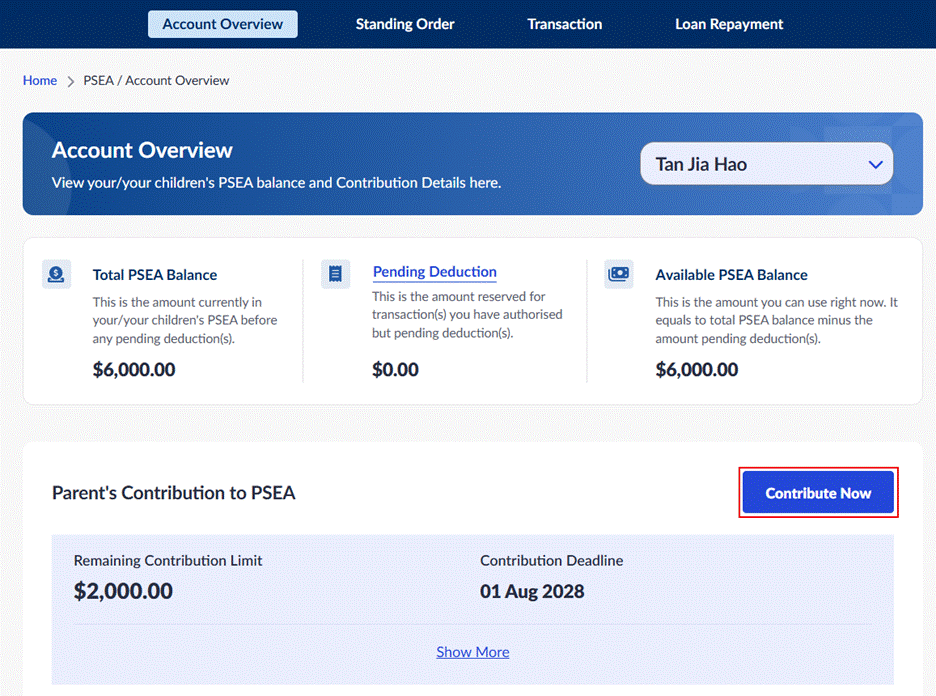
Navigate to PSEA > Account Overview. Under Parent’s Contribution to PSEA, click Contribute Now to make a contribution via online payment in SFS.
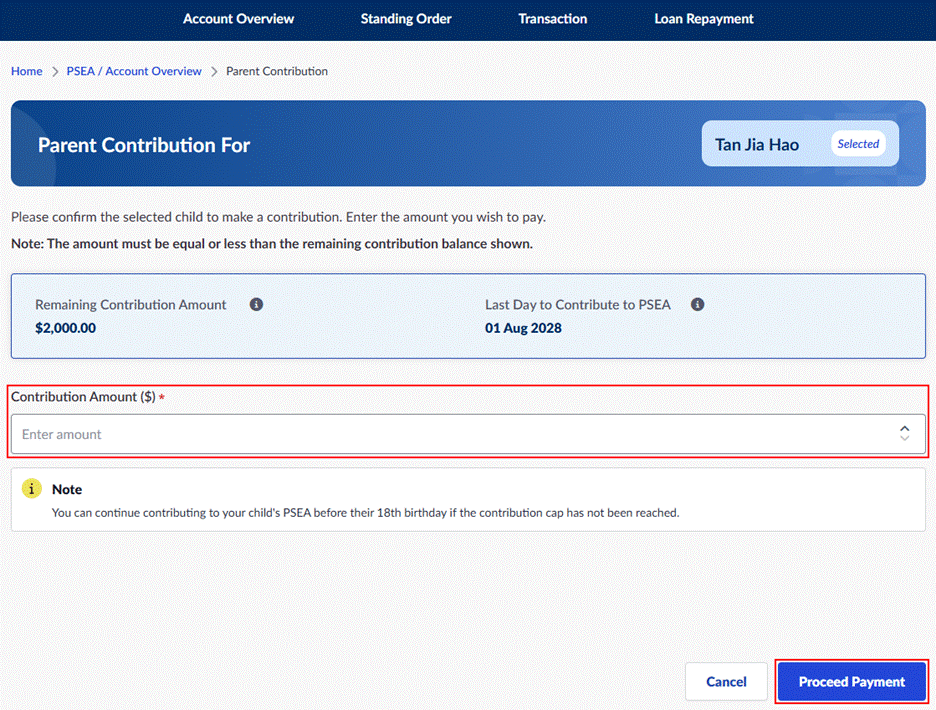
On the Parent Contribution page, please complete the following steps:
1. Verify that the child's name displayed on the page is correct.
You may also wish to take note of the following information:
· Remaining Contribution Amount is the remaining amount that can be contributed to this child’s account. If this amount is 0, you will not be able to proceed with the contribution.
· Last Day to Contribute to PSEA is the last day you can contribute to this account.
2. Enter the amount that you wish to contribute under Contribution Amount ($) and click Proceed Payment.
3. On the Amount Payable page, check the payment information and then click Next.
Currently, only PayNow is supported as the payment method.
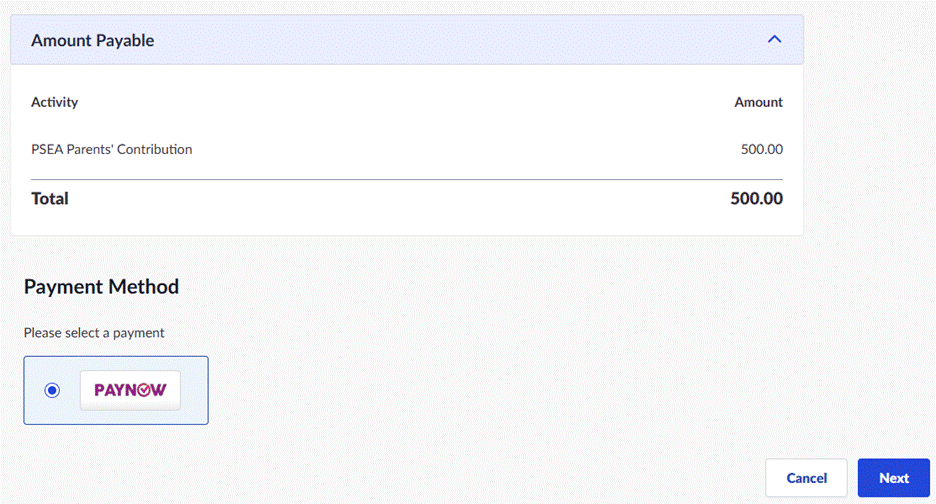
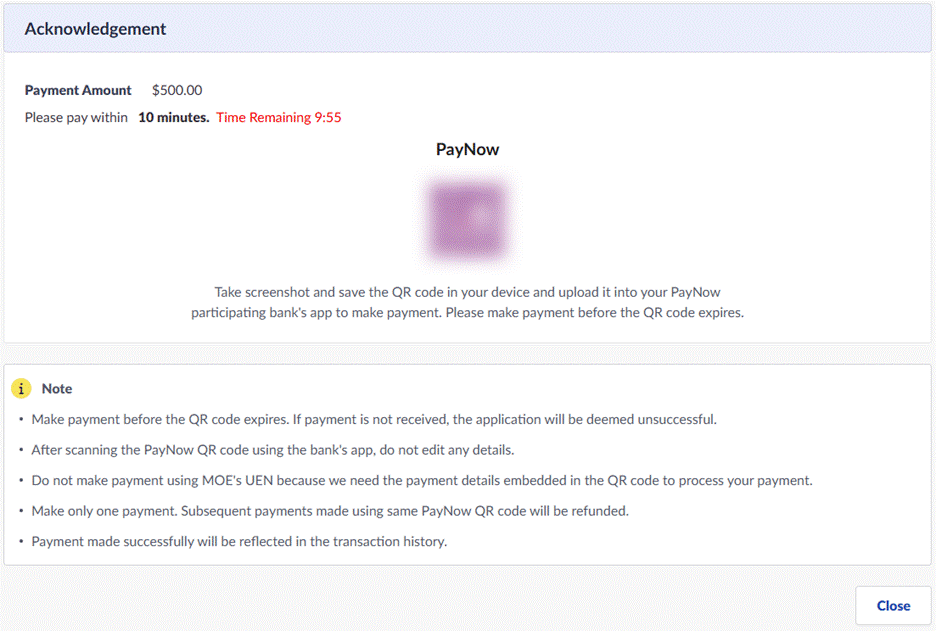
4. Complete the payment by scanning the PayNow QR code. Once the payment is completed, you will see the payment result page.
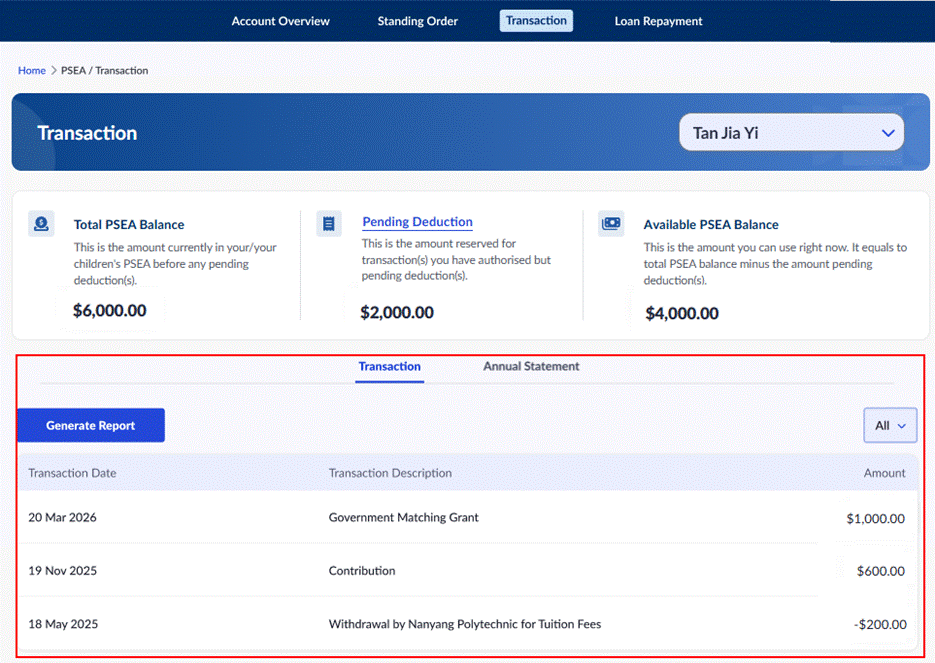
5. Navigate to PSEA > Transaction:
· You can see your contribution listed here as one of the transactions.
· Once the government matching grant is credited to your child’s PSEA the next month, you can see it listed here too.
Learn more
· Post-Secondary Education Account (PSEA)
Explore more
· Edusave
o Edusave Balance, Annual Contribution, and Government Top-Up
o Set Up and Manage Edusave Standing Order
o View and Authorise Edusave Withdrawals
o Edusave Transfer to Post-Secondary Education Account (PSEA)
· Post-Secondary Education Account (PSEA)
o PSEA Balance and Government Top-Up
o Parents’ Contributions to PSEA
o Set Up and Manage PSEA Standing Order
o View and Authorise PSEA Withdrawals
o Repay Government Education Loans
o Options for PSEA Closure at Age 31
· Financial Assistance Scheme (FAS) Application
o Apply for Financial Assistance
· SFS Portal Navigation